

Understand your invoice
Where to find your invoices
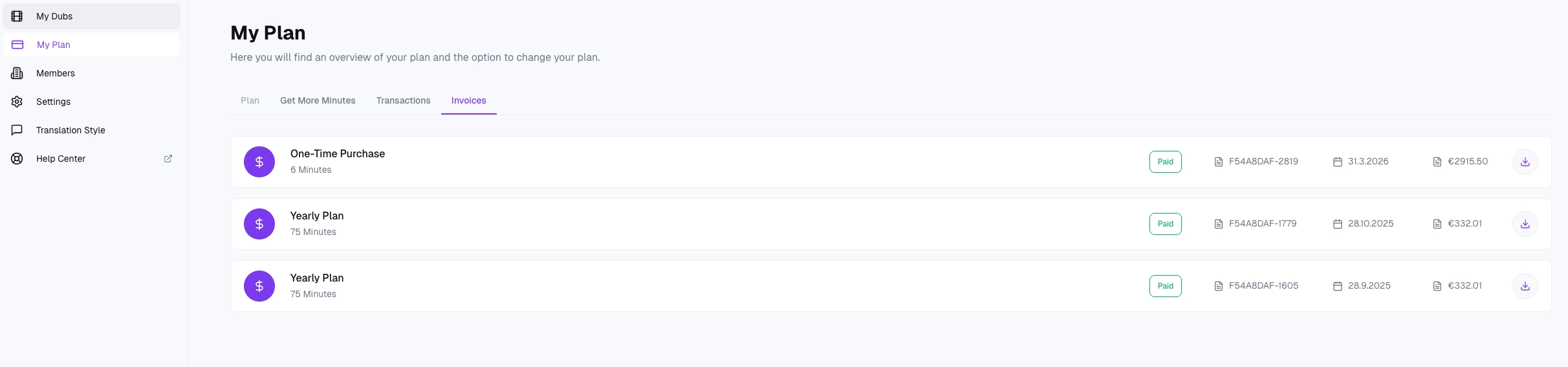
Section titled “Where to find your invoices”- Open My Plan from the sidebar.
- Open the Invoices tab. You’ll see your most recent invoices (up to 24) with date, amount and payment status. Click an invoice to open the PDF version.
What’s on your invoice
Section titled “What’s on your invoice”You’ll see:
- Invoice number and issue date — the unique reference for this charge.
- Billing address and VAT ID — as entered during checkout.
- Plan or purchase name — e.g. Monthly Plan, Yearly Plan
- Quantity — the number of minutes included in the line item.
- Amount — before and after tax, with currency.
- Tax (VAT / GST / sales tax) — calculated automatically based on your billing country.
- Proration — if you upgraded mid-cycle, a prorated adjustment for the partial period is shown.
- Total — the amount actually charged.
Billing address, company name and VAT ID
Section titled “Billing address, company name and VAT ID”Your billing details are collected by Stripe during your first checkout — the time you subscribed. Stripe stores them on your customer record and reuses them on every future invoice automatically. To change them — after a move, a company rename or because you missed a field the first time — contact hello@dubly.ai with:
- Your account email
- The new billing details (company name, address, VAT ID)
- Whether you need a corrected copy of a past invoice We’ll update your Stripe customer and re-issue affected invoices if needed.
Who receives invoice emails
Section titled “Who receives invoice emails”Please note that we do not send invoices via email at this time. To view or download your billing statements, simply log in to your account and navigate to the My Plan.
Refunds and corrections
Section titled “Refunds and corrections”If a charge needs adjusting, we issue a credit note from Stripe rather than altering the original invoice. Credit notes appear alongside your regular invoices in the Invoices tab and, where relevant, automatically reduce the amount owed on the next invoice.
Questions about a specific charge?
Section titled “Questions about a specific charge?”Email hello@dubly.ai with the invoice number from the header.